A client deck dies when another tab opens, and the same interruption already happened four afternoons this week. You reach for the mouse to close the tab, the half-typed slide line about Q3 fulfillment is still glowing on screen, the kitchen timer you set for 45 minutes of focused work is sitting on the desk beside a crumpled granola bar wrapper. You already tried muting notifications for an hour yesterday, but the same pattern popped up again before lunch today.
Pull all unplanned work interruptions from the past three days first
You might be tempted to log distractions as they happen in real time every day next week, but pulling three days of existing data first lets you spot patterns you would miss if you only track for 24 hours. A single random interruption, like a last minute request from your manager for a report that’s due the same day, isn’t a pattern worth adjusting your calendar for – but the same Slack ping from the operations team popping up four afternoons in a row is a pattern you can fix with one small edit. You don’t need a fancy tool to pull these details – you can grab them from margin scribbles in your notebook, the timestamped notes in your phone’s default notes app, or your browser history that shows when you jumped away from core work tabs. Only include interruptions that pulled you off a planned task for 10 minutes or more, so you skip the split-second glances at your phone that don’t derail a work block. Fill each row as you go, using the structure below to organize what you find:
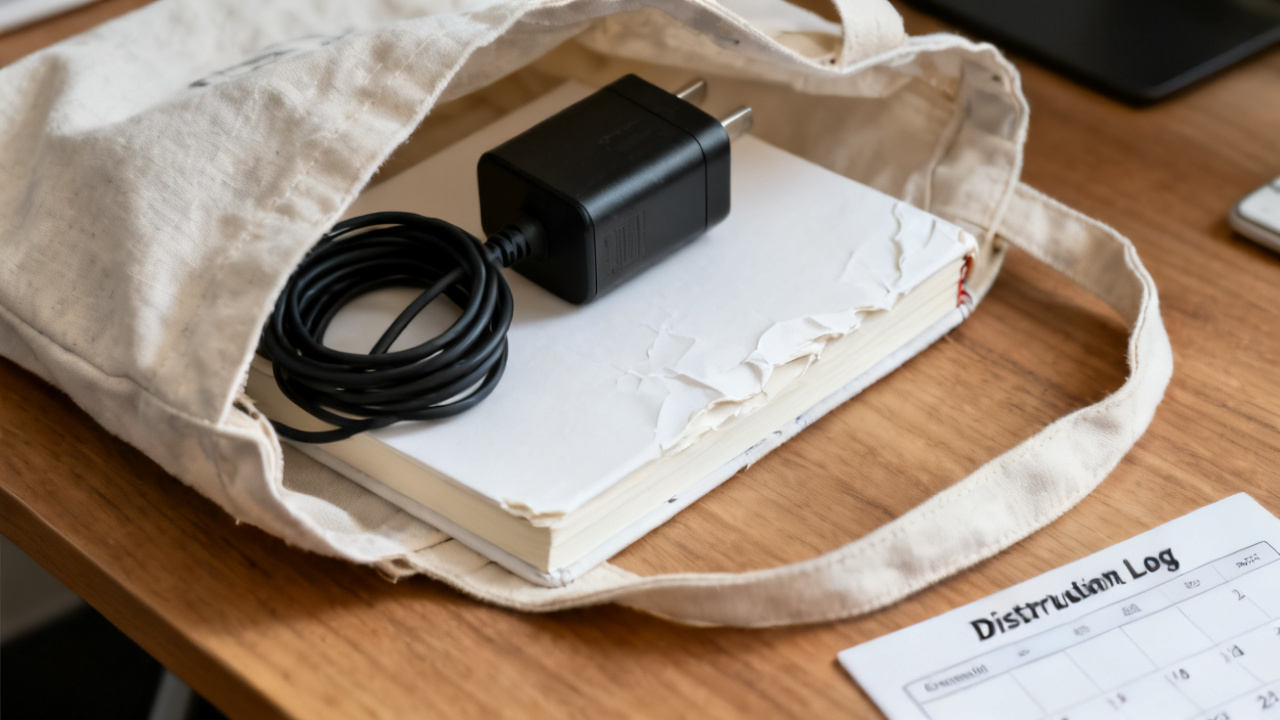
| Date | Interruption | Total time pulled off task | Trigger that let the interruption happen |
|---|---|---|---|
| Wednesday 14th | Slack ping from operations about non-urgent shipping delay | 22 minutes | Unmuted Slack open in secondary tab during deep work blocks |
| Thursday 15th | Personal text chain with roommate about upcoming apartment repair | 18 minutes | Phone placed face up on desk edge during focused work |
| Friday 16th | LinkedIn notification about a new industry follower | 12 minutes | LinkedIn tab left open after researching competitor content earlier that day |
You can add more rows if you have more interruptions, but stop once you’ve logged everything from the past three days, no need to go back further than that.
Pick exactly one interruption to fix for next week
Most distraction logs never make it to your calendar because you try to fix every single interruption at once, and burn out by Tuesday of the next week. You only pick one interruption to address, the one that showed up more than twice across the three days you logged, or the one that cost you the most total time. If you have two interruptions that showed up the same number of times, pick the one that derailed higher-priority work. For example, if both personal texts and LinkedIn notifications popped up three times, but the personal texts pulled you off the client deck while the LinkedIn notifications pulled you off admin work, pick the personal text interruption to fix first. All other parts of your work routine stay exactly the same, no other tweaks to your notification settings, no new time blocking rules, no changes to where you keep your phone unless that’s the specific fix for the interruption you picked.
Adjust one calendar block to block that interruption before it hits
You don’t make a vague note to “check Slack less” – you make one specific edit to your existing calendar for next week, no other changes. If the interruption you picked is non-urgent Slack pings pulling you off 1-3pm deep work blocks, you open your existing 1-3pm deep work event, add “Slack fully closed, no checks until 3pm” to the event description, and add a 5 minute 3:05pm block labeled “Slack catchup” directly after each deep work block for the week. If the interruption you picked is personal texts pulling you off task while you’re working on high-priority projects, your one calendar edit could be adding a 10 minute block at 12:30pm and 3:30pm each day labeled “respond to personal messages” so you know you have dedicated time to catch up, and you don’t feel the need to check your phone mid-work block. You save the edit immediately, and don’t adjust it for any reason before the week starts. You don’t add any other new blocks, you don’t change the length of existing meetings, you only adjust the parts that directly block the single interruption you picked.
Jot a single tracking note to reference after the week ends
You write one short, pinned note that stays visible on your desk or the top of your to-do list for the entire coming week. The note only includes two details: the name of the interruption you’re addressing, and the number of times that interruption derailed your work the week before. Example measurement: 4 separate non-urgent Slack pings pulled me off 1-3pm deep work blocks last week. You don’t track any other metrics for the week, no total focus time, no number of tasks completed, no total time spent in meetings. Every time the specific interruption you picked pops up and pulls you off task for 10 minutes or more, you add one tick mark next to the note. You don’t beat yourself up if the interruption happens, you just add the tick mark and get back to work. You don’t need to write a long recap of why the interruption happened each time, you just add the tick mark. If you notice the interruption is happening because of a different trigger than you first thought, you can jot that one detail down next to the tick mark, but you don’t adjust your calendar until the end of the week when you sit down to update the log again. At the end of the week, you count the tick marks and compare that number to the baseline you wrote down at the start.
Sit down to update this log next Sunday before meal prep
You only need 10 minutes to go through the full process each Sunday, no longer. If the calendar edit you made the week before cut the number of interruptions in half or more, you can keep that edit in your calendar permanently, and pick a new single interruption to fix for the coming week. If the number didn’t go down, you can adjust the calendar edit to address the new trigger you noted, or pick a different interruption entirely. You don’t have to overcomplicate the process by adding more changes or tracking more metrics each time you sit down, you just repeat the same steps you used this week: pull three days of interruption data, pick one to fix, make one calendar edit, jot one tracking note. If you want to adjust how you pull your interruption data when you sit down, you can find more simple walkthroughs on Find Core Insight. You don’t have to log distractions every single day of the week, you just show up for that 10 minute block on Sunday, make one small edit, and get on with the rest of your day.